How to tune VSCode to be less stressful on the cluster
Goal
Limit VSCode stress on filesystem (and network if using the sshfs way) by controling VSCode greediness
This page is not exhaustive
This page gives some clues about how reduce stress by tuning VSCode like editors. It may be incomplete and outdated. We will try to completed it and maintain it in a best effort way.
Limit plugin usage
One way to reduce VScode greediness is to limit and choose carefully plugins installed. Less plugins means less resources consumed by VSCode.
In particular avoid plugins like local LLM / coding-assistant plugins that are compute and memory intensive. Also avoid using non institutional LLM / coding-assistant for security, privacy, and legal liability reasons.
If you work on many kinds of developments or analyses, please create distinct profiles where you only install required plugins.
Control file scanning
VSCode heavily relies on a program called ripgrep (or rg for short) to index and search in any files in a workspace, even huge files, like sequence files, or thousands of hidden files, like those left by snakemake or conda. This is both compute and filesystem intensive. There are many ways to limit it.
Recommendations
Only open your project directory. Do not use VSCode as file browser by opening your home, work, save or the root (/) of the cluster.
Organize your project directory/workspace. Don't put everything in one directory. At least separate scripts and data in distinct directories. It will be easier to control VSCode and ripgrep scans this way.
Configure VSCode to limit file and folder scans:
- Use
.gitignore,.ignoreand.rgignorefiles at the root of your project directory to control files scanned by VSCode andripgrep. For example, list input, output and any temporary folders in those files. - Edit VSCode setting file
settings.jsonto set glob exclusion patterns. Pay attention to keys"files.exclude","files.watcherExclude"and"search.exclude". Forbid folders containing many huge data, like sequence files, or many files like environment folders (e.g. conda, .snakemake, node_module folders). For example, if you don't want to scan the.snakemakefolders, and exclude thedatadirectory at root of the workspace, put this configuration in yoursettings.jsonfile :~/.config/VSCodium/User/settings.json 1 2 3 4 5 6 7 8 9 10 11 12 13 14 15
{ ..., "files.exclude": { "**/.snakemake": true }, "search.exclude": { "./data": true, "**/.snakemake": true }, "files.watcherExclude": { "./data": true, "**/.snakemake": true }, ... } - You can also forbid VSCode to follow symbolic links by adding
"search.followSymlinks": falseto filesettings.json:~/.config/VSCodium/User/settings.json 1 2 3 4 5
{ ..., "search.followSymlinks": false, ... } - In addition, you can look at ripgrep documentation to control its greediness.
Where to find settings.json
On your computer, the usual path of settings.json depends of the editor (not exhaustive and may be out-of-date):
- VSCode:
~/.config/Code/User/settings.json - VSCodium:
~/.config/VSCodium/User/settings.json - Positron:
~/.config/Positron/User/settings.json
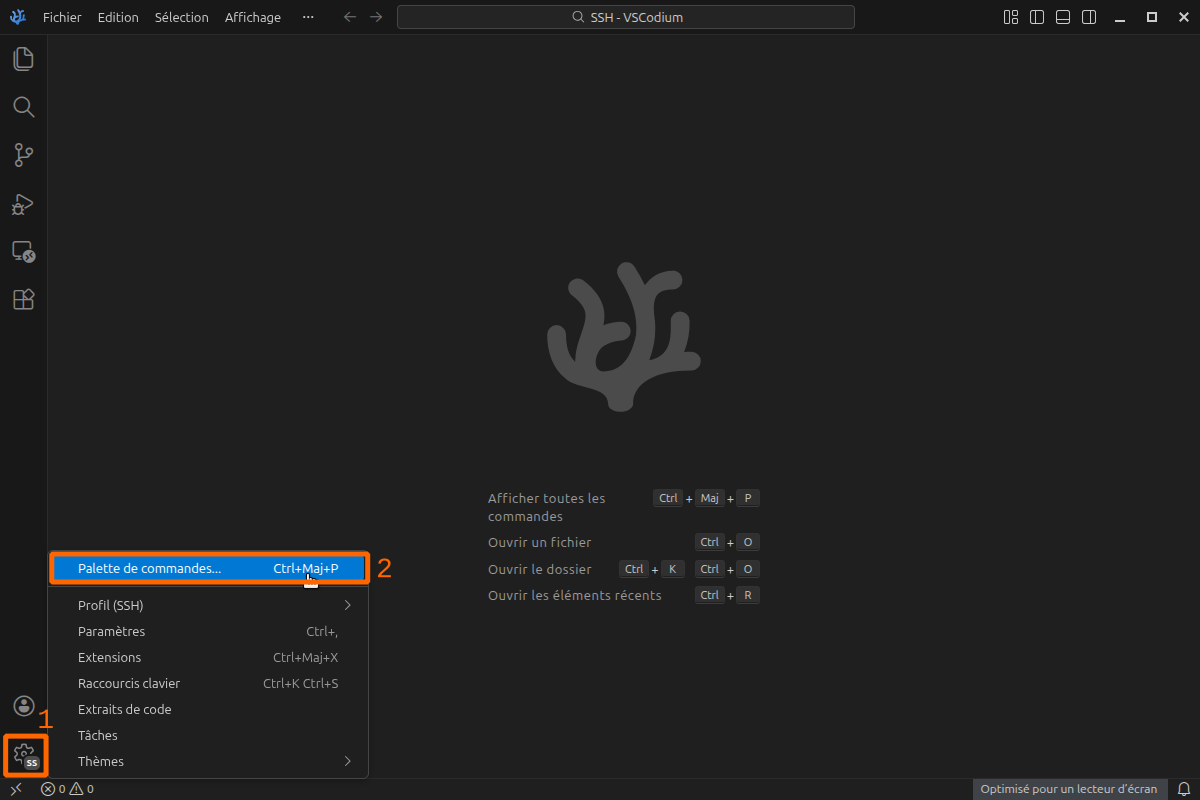
You can access it from the editor itself this way (you must be outside a profile):
- Click on the clog wheel button Manage at the bottom left of the editor.
- Click on the Command palette... entry
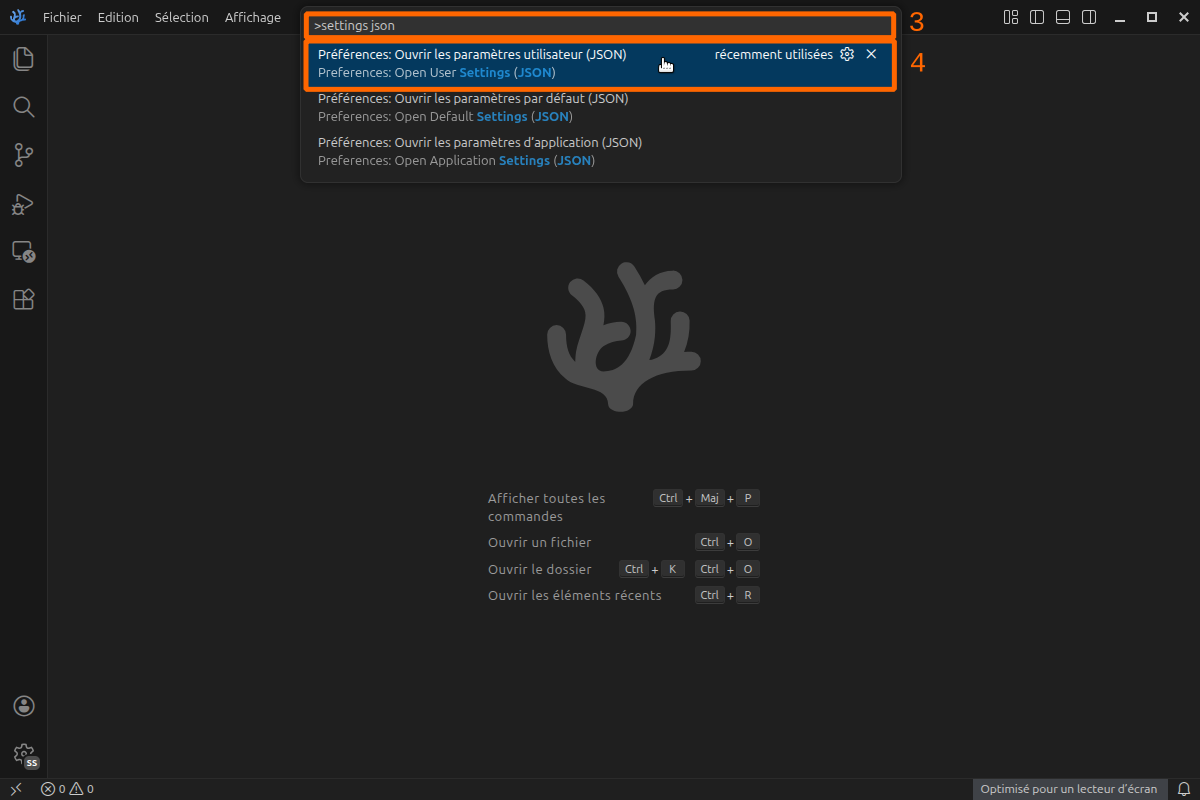
- Enter
settings jsonin the field at the top of the editor. - Choose 'Preference: Open User Settings (JSON)' in the list.